
Moments and callouts
Add the stops that tell your story, pick a callout card for each, and edit them right on the map.
What a moment is
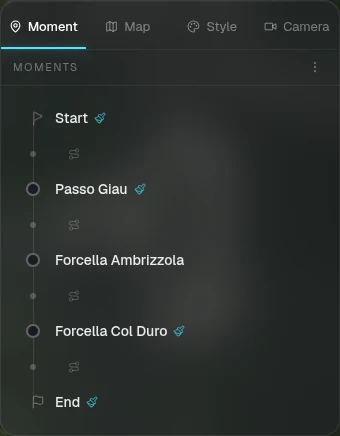
A moment is a point on your route that the story stops for. It has a marker on the map and a callout card, and the camera holds on it while the card is on screen.
- — Select a moment in the list, or click its card on the map, to open its settings in the Moment tab
- — Set how long the camera holds on it and give it a title, location and date
- — Anything you set on a moment overrides the story-wide defaults in the Style tab
Callout cards
The callout is the card that appears at a moment. There are 18, in four families: Clean, Magazine, Handmade and Tech. Pick one per moment, or set a default for the whole story in Style → Callout.

Pill
Clean

Country Flag
Clean

Quote
Clean

Widescreen
Clean

Local Tip
Clean

Marquee
Magazine

Plate
Magazine

Journal
Magazine

Monolith
Magazine

DOF Narrative
Magazine

Polaroid
Handmade

Sticker
Handmade

Gallery
Handmade

Doodle
Handmade

Taped Journal
Handmade

Field Notes
Handmade

Telemetry
Tech

Tech HUD
Tech

Transport
Tech
Edit a callout right on the map
You don't have to go through the panel. Hover a callout on the map to show its toolbar.
- — Click the card to select it and open its settings
- — Double-click the text to edit it in place
- — Change Icon (on cards that have one) and Accent colour for this moment only
- — Edit to change the card's content, Hide to take the card off the map
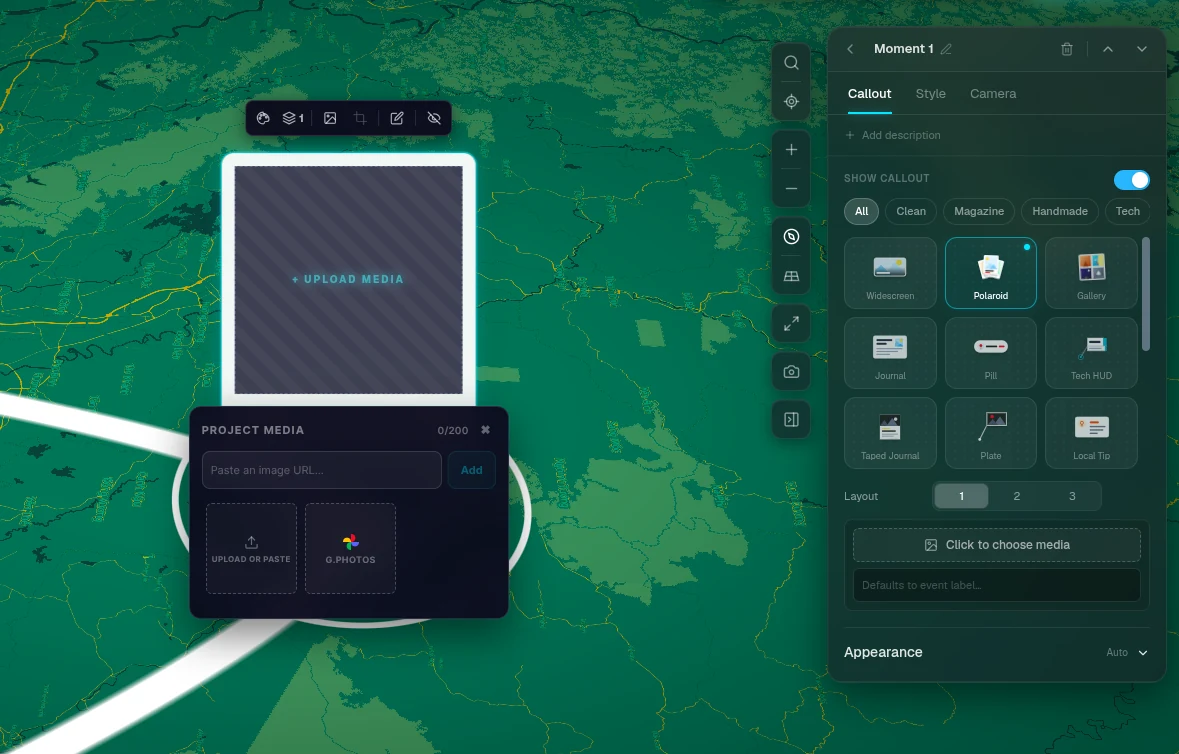
Add photos to a card
Photo cards (Widescreen, Polaroid, Gallery, Plate and others) take images from your device, or from Google Photos once it's connected.
- — Photos count toward your plan's media limit per story
- — To place many photos at once, use Add trip photos
Ready to tell your story?
Turn your GPS track into an interactive, cinematic 3D map in just a few clicks.
Start your first story