
Import a route
Upload a GPS file, get one out of Strava, Garmin, Komoot, Wikiloc or AllTrails, or paste a Google Maps link.
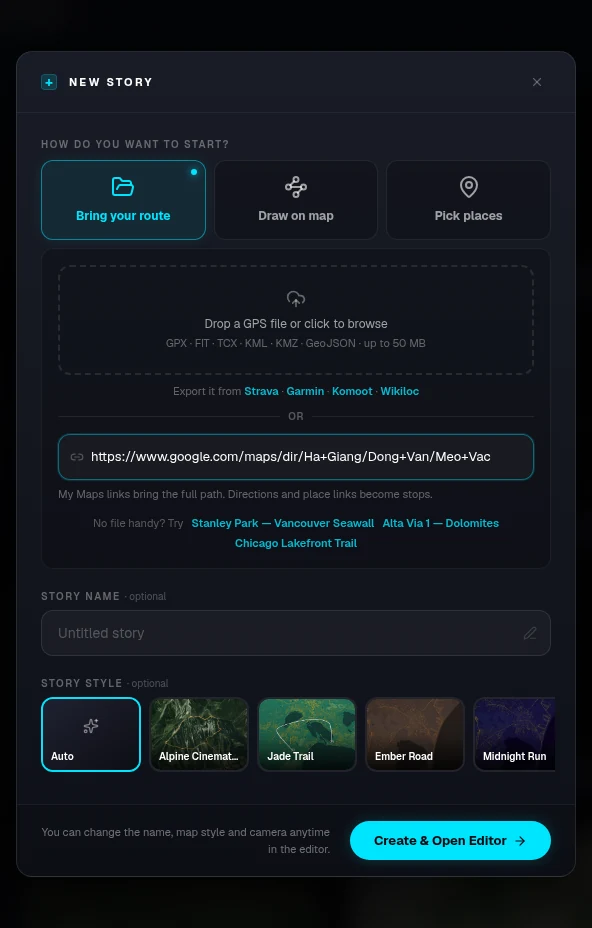
Create a new story
Click Create your first story on the home page, or New Story in your stories list, and choose how it starts. Bring your route is the fastest path: a real track gives the camera something to follow from the first second.
- — Bring your route: a GPS file or a Google Maps link
- — Draw on map: click the path yourself when you have no file
- — Pick places: search or drop the places you visited, joined in order
- — The story name and style are optional; you can change both later in the editor
- — No account needed to try it. You'll be asked to sign up when you save, share or export
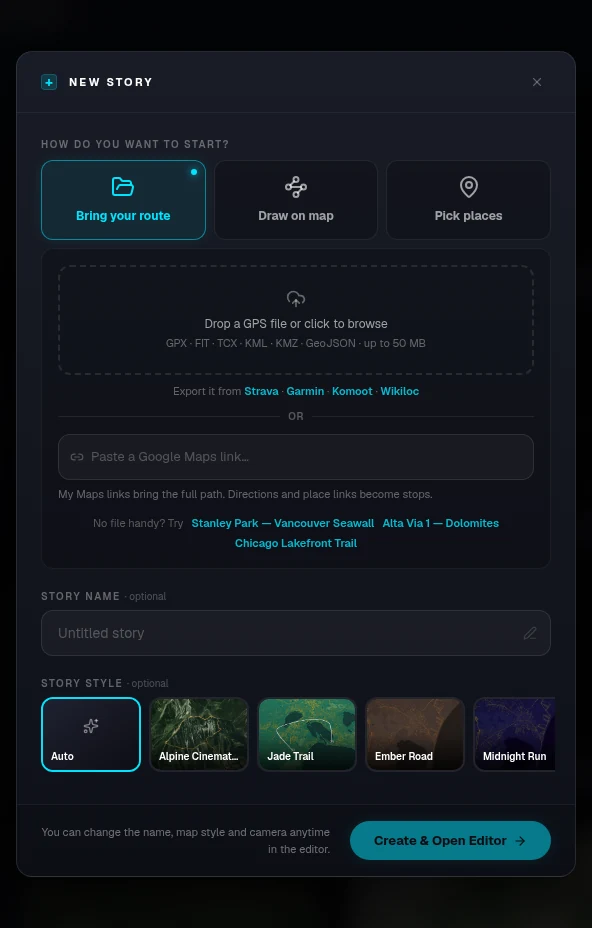
Upload a GPS file
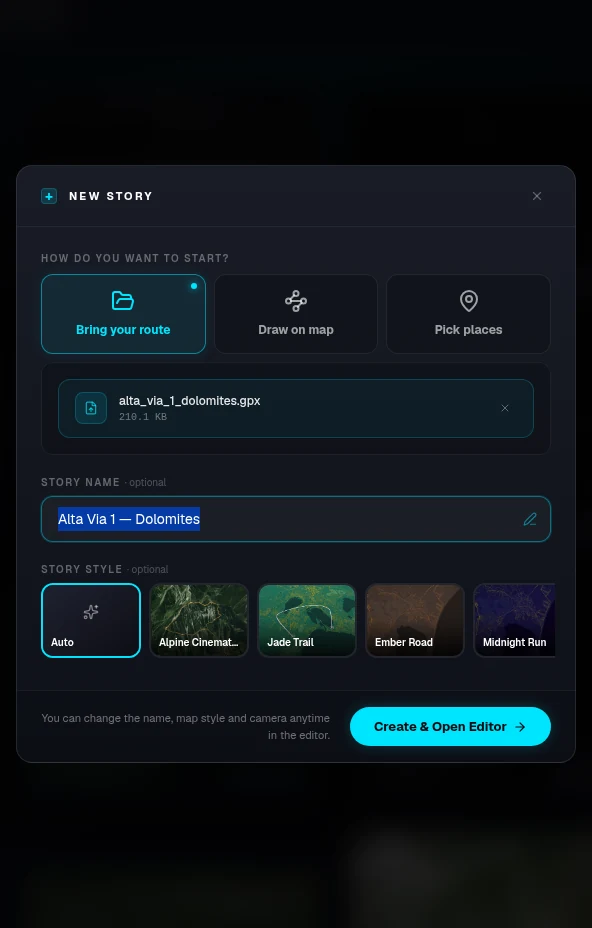
Drop the file onto the dialog or click to browse. The route is processed in the background and opens in the editor when it's ready.
- — Supported: GPX, FIT, TCX, KML, KMZ and GeoJSON, up to 50 MB
- — The story name is filled in from the file name. Edit it or leave it
- — Named waypoints in the file help place your first moments
- — No file handy? Try one of the sample routes in the dialog
- — Already in the editor? Use the moments menu → Import GPX Route…
Get a GPX file from Strava
RouteTale doesn't connect to Strava directly. Export the activity as a file, then upload it.
- — Open strava.com in a browser and sign in. Exporting works on the website, not in the app
- — Open one of your activities
- — Click the ••• (more) menu next to the activity and choose Export GPX
- — Upload the downloaded .gpx file to RouteTale
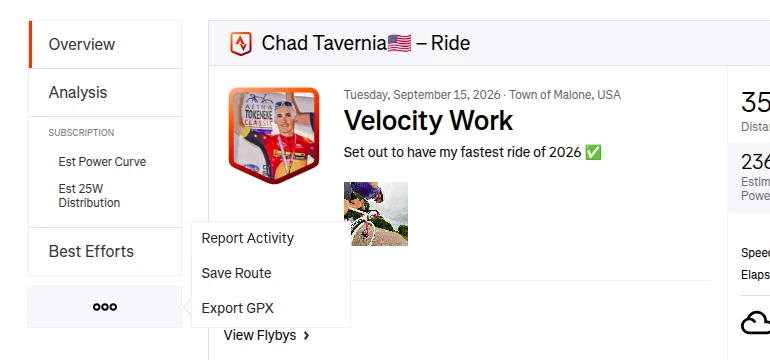
Open strava.com
Get a file from Garmin Connect
Garmin gives you the original FIT file or a GPX. RouteTale reads both.
- — Open connect.garmin.com in a browser. Export isn't available in the mobile app
- — Go to Activities and open the activity
- — Click the gear icon at the top right of the activity
- — Choose Export Original (FIT) or Export to GPX
- — Upload the file to RouteTale
Open connect.garmin.com
Get a GPX file from Komoot
Download the tour as GPX from the Komoot website.
- — Open komoot.com in a browser and open the tour (one of yours, or a public tour)
- — Click the ••• menu next to Save and Navigate
- — Choose Download GPX
- — Upload the .gpx file to RouteTale
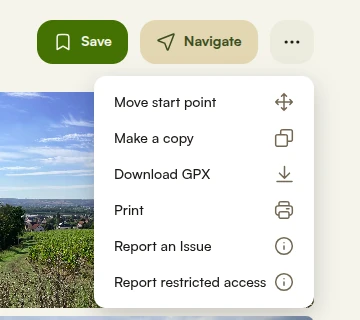
Open komoot.com
Get a GPX file from Wikiloc
Wikiloc offers several versions of the same trail. Take the original.
- — Open the trail page on wikiloc.com
- — Click Download, then choose the GPX file
- — Pick the original trail rather than the simplified 500-point version, so bends aren't cut
- — Upload the .gpx file to RouteTale

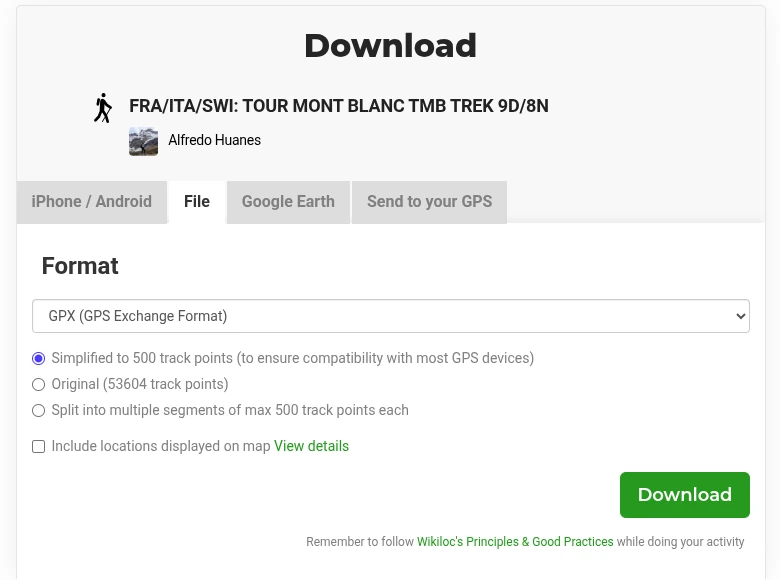
Open wikiloc.com
Get a GPX file from AllTrails
Export the trail's map file as GPX.
- — On alltrails.com, open the trail or map
- — Choose Export map file (in the app: ••• → Export route file)
- — Select GPX Track and export
- — Upload the .gpx file to RouteTale
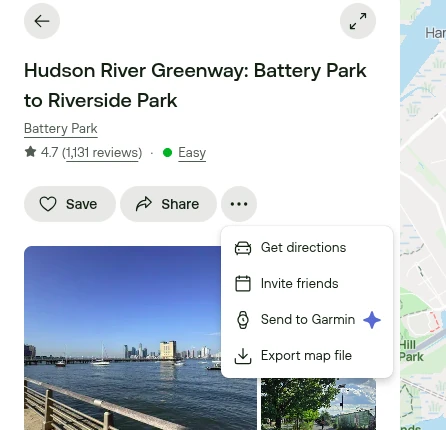
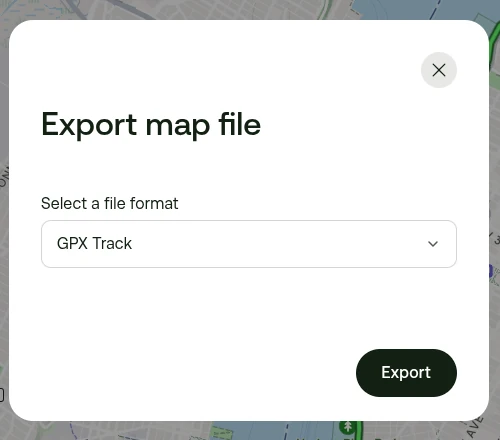
Open alltrails.com
Get a GPX file from Ride with GPS
Export the route or ride as a file, then upload it.
- — On ridewithgps.com, open the route or ride
- — Click More in the left panel, then Export as File
- — Choose GPX Track and save it
- — In the mobile app: open the route, tap the ••• menu and choose Export GPX
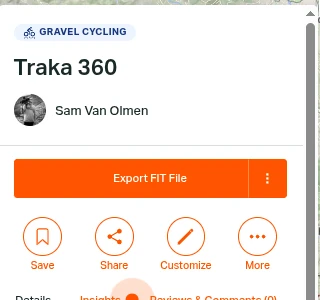
Open ridewithgps.com
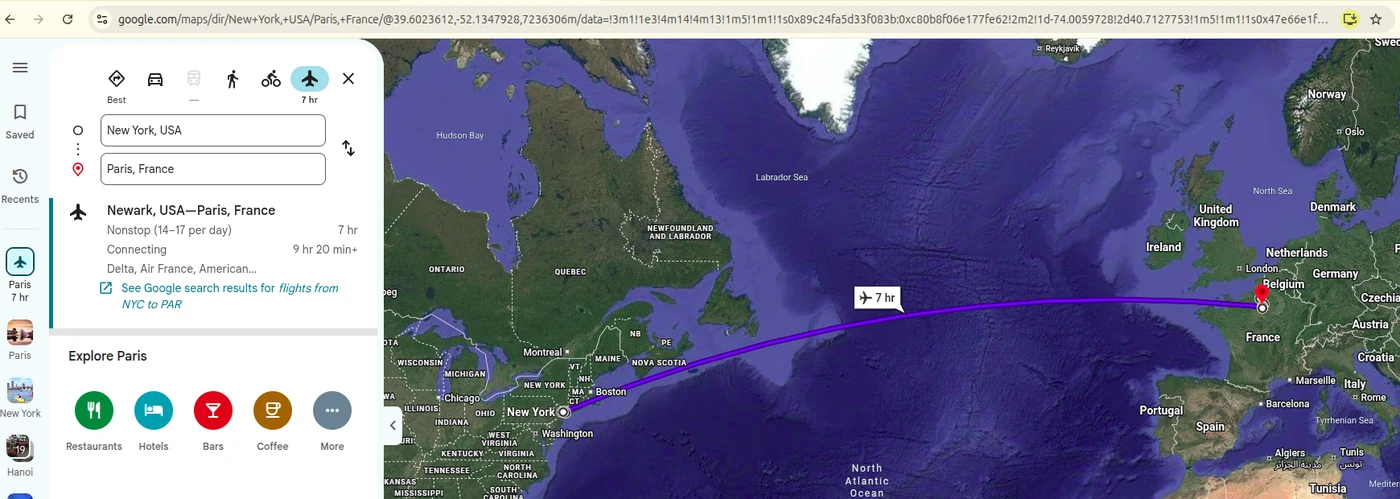
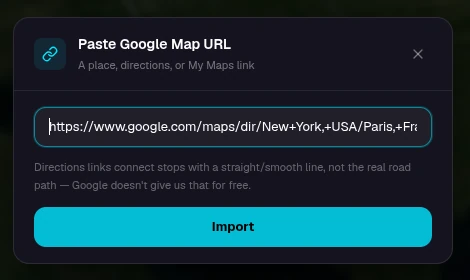
Paste a Google Maps link
Paste the link into the dialog instead of uploading a file. What you get depends on the kind of link.
- — My Maps link: the full drawn path comes in as your route
- — Directions link: each stop becomes a moment, in order. The line between them doesn't follow the roads Google suggested
- — Place link: that place becomes a moment
- — Short links (maps.app.goo.gl) work too
- — Already in the editor? Use the moments menu → Paste Google Map URL
Open google.com/maps
Ready to tell your story?
Turn your GPS track into an interactive, cinematic 3D map in just a few clicks.
Start your first story