
Editor tour
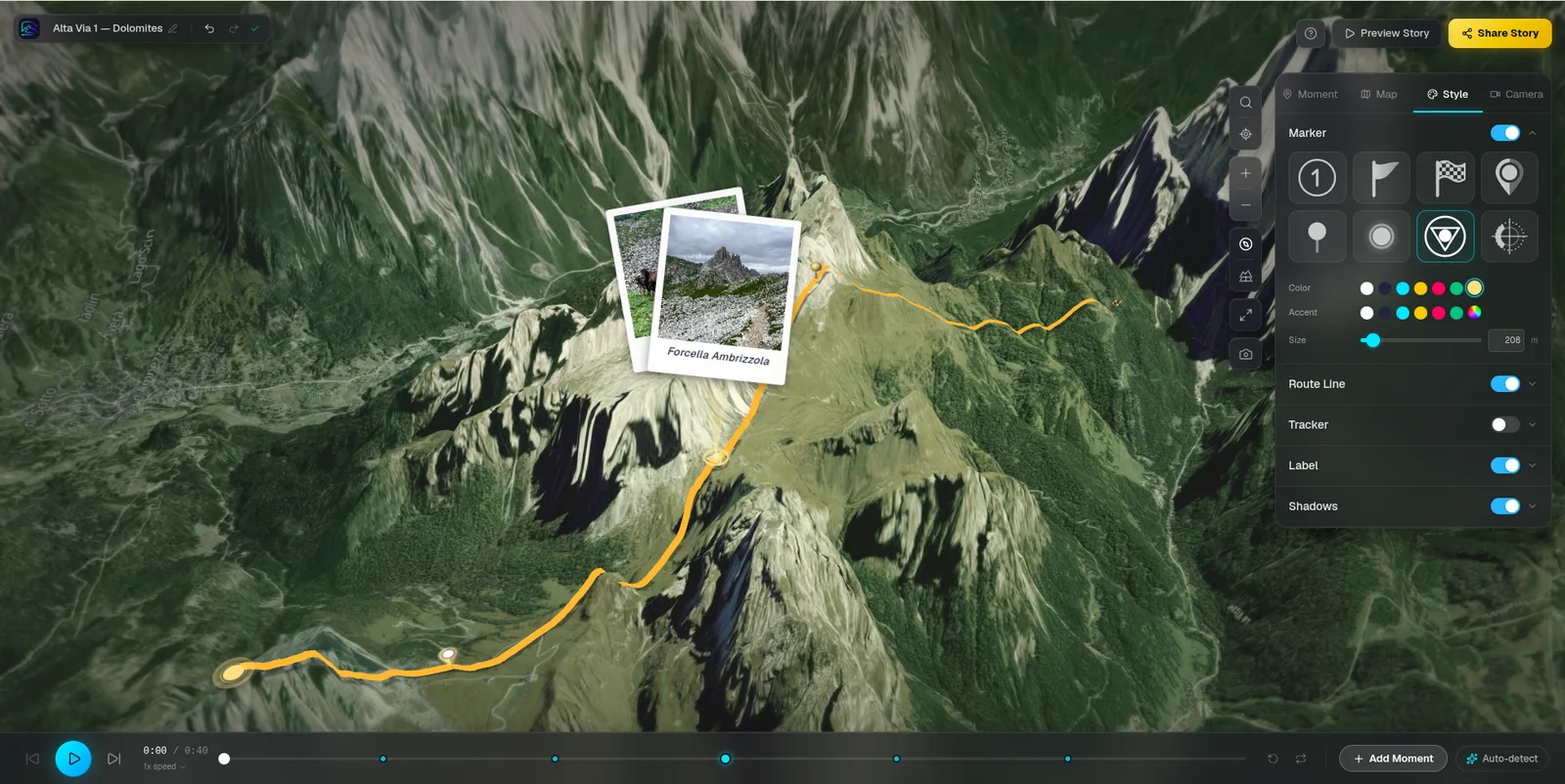
What's where in the editor: the map, the moments list, the four panels, the timeline and the map toolbar.
The editor at a glance
The map fills the middle of the screen. The panel on the right has four tabs, and the timeline along the bottom plays the story.
- — Moment: the list of moments and the settings for the selected one
- — Map: map style, color look, atmosphere, weather and terrain
- — Style: route line, markers, tracker, callout defaults, shadows and music
- — Camera: camera preset, distance and pace
- — The top bar holds your story name (click it to edit the title and subtitle), Share and Export
Play and scrub
Press play to watch the story exactly as viewers will see it, or drag along the timeline to jump to any point. Every change in the panels shows up the next time it plays.
Map tools
The toolbar on the map helps you find your way and frame shots.
- — Search a place or paste coordinates
- — Current location, zoom in and out, and Fit view to bring the whole route back on screen
- — Reset north (drag sideways to rotate) and the angle control (tap to cycle, drag for any angle)
- — Take a Snapshot to export a still image of the current view
Change the route later
The menu at the top of the moments list lets you swap or add to the route after the story exists.
- — Paste Google Map URL
- — Import GPX Route… (or Replace GPX Route… when there is one)
- — Draw Route… (or Redraw Route…)
- — Add trip photos…
Your work saves as you go
Once you're signed in, changes save automatically. A story made before signing up is only kept for a limited time, so create an account to keep it.
- — Free: 3 stories and 10 moments per story
- — Plus: unlimited stories and 100 moments per story
Ready to tell your story?
Turn your GPS track into an interactive, cinematic 3D map in just a few clicks.
Start your first story